

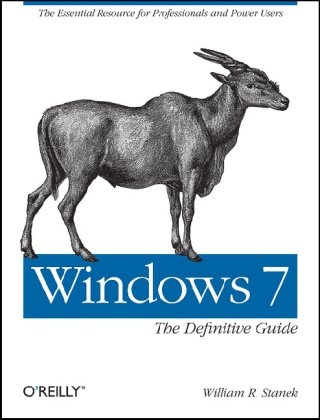
Windows 7 The Definitive Guide The Essential Resource for Professionals and Power Users 1st Edition by William Stanek ISBN 0596800975 9780596800970


Original price was: $50.00.$35.00Current price is: $35.00.
Windows 7 The Definitive Guide The Essential Resource for Professionals and Power Users 1st Edition by William Stanek – Ebook PDF Instant Download/Delivery: 0596800975, 9780596800970
Full download Windows 7 The Definitive Guide The Essential Resource for Professionals and Power Users 1st Edition after payment
Product details:
ISBN 10: 0596800975
ISBN 13: 9780596800970
Author: William Stanek
Windows 7 The Definitive Guide The Essential Resource for Professionals and Power Users 1st Table of contents:
Part I. Setting Up, Customizing, and Tuning Windows 7
Chapter 1. Getting Started with Windows 7
Getting to Know Windows 7
Installing and Using Windows 7
Logging On and Finalizing the Installation
Performing Essential Configuration Tasks
Changing your network location type
Connecting to the Internet
Responding to Action Center notifications
Other setup tasks
Reviewing and Activating Your Computer
Working with Windows 7
Logging On, Switching, Locking, Logging Off, and Shutting Down
Logging On to Your Computer
Switching Users
Locking Your Computer
Logging Off Your Computer
Sleeping and Turning Off Your Computer
Chapter 2. Optimizing Windows 7’s Interface
Customizing Windows 7’s Desktop
Getting Around the Desktop
Getting Around the Start Menu
Navigating and customizing the programs list
Navigating common folders and customizing the listed features
Navigating the control buttons and customizing the power configuration
Navigating the Search box
Getting Around the Taskbar
Navigating and customizing taskbar buttons
Navigating and customizing the notification area
Using Desktop Gadgets
Getting to Know Your Computer’s Gadgets
Using the Calendar gadget
Using the Clock gadget
Using the CPU Meter gadget
Using the Weather gadget
Using the Stock gadget
Using the Currency gadget
Using the Slide Show gadget
Customizing Menus and the Control Panel
Navigating and Customizing Your Computer’s Menus
Navigating and Customizing the Control Panel
Chapter 3. Fine-Tuning Windows 7’s Appearance and Performance
Balancing Appearance and Performance
Getting Your Windows Experience Index Score
Understanding Your Windows Experience Index Score
Improving Your Windows Experience Index Score
Understanding User Account Control and Its Impact on Performance
User Accounts and Permissions
Permission and Consent Prompting
Elevation and the Secure Desktop
Configuring and Tuning UAC
Understanding Windows 7 Personalization
Personalization Settings
User Experience Levels
Personalizing Windows 7
Fine-Tuning Your Window Colors and Experience Level
Optimizing Aero Glass
Changing the experience level and appearance effects
Choosing Your Desktop Background
Choosing and Configuring Your Screensaver
Selecting a screensaver
Customizing the 3D Text and Photos screensavers
Choosing Your System Sounds
Selecting a sound scheme
Customizing your sound scheme
Choosing Your Mouse Pointers
Selecting a mouse pointer scheme
Customizing your mouse pointer scheme
Choosing and Managing Your Themes
Configuring Your Monitors
Setting the screen resolution and orientation
Setting the refresh rate and color quality
Customizing multiple-monitor configurations
Setting the monitor or graphics card driver
Optimizing Performance
Fine-Tuning Visual Effects
Fine-Tuning Application Performance
Fine-Tuning Virtual Memory
Fine-Tuning Data Execution Prevention
Using ReadyBoost to Enhance Performance
Enabling Windows ReadyBoost
Configuring Windows ReadyBoost
Ejecting a ReadyBoost device
Chapter 4. Installing, Configuring, and Maintaining Software
Software Installation: What’s Changed
Software Installation: What You Need to Know
AutoPlay
Autorun
Application Setup
Windows and 64-bit Programs
Installing and Running Your Software
Installing Software
Making Software Available to Others
Using MS-DOS and 16-Bit Software with Windows 7
Running Applications in Windows XP Mode
Using Older Programs with Windows 7
Running the Program Compatibility Wizard
Setting compatibility options manually
Managing Software Once It’s Installed
Assigning Default Programs
Setting your default programs
Setting global default programs
Reconfiguring, Repairing, or Uninstalling Software
Viewing and Managing Currently Running Programs
Viewing and Managing Startup Programs
Viewing your startup programs
Enabling and disabling startup programs
Adding and Removing Windows Features
Chapter 5. Customizing Your Computer’s Hardware Devices
Hardware Installation: What’s Changed
Which Type of Internal Device Is the Right Choice?
Which Type of External Device Is the Right Choice?
Hardware Installation: What You Need to Know
Where Does the Operating System Store Device Drivers?
How Does the Operating System Validate Device Drivers?
How Does the Operating System Obtain Driver Updates?
Learning About Your Computer’s Hardware Devices
Viewing Installed Hardware
Getting to Know Your Computer’s Hardware Devices
Disk Drives
Display Adapters
DVD/CD-ROM Drives
Human Interface Devices
IEEE 1394 bus host controllers
Imaging Devices
Keyboards
Mice and other pointing devices
Monitor
Network Adapters
Sound, video, and game controllers
System devices
USB hubs and controllers
Viewing and Managing Device Information
Customizing Your Computer’s Input Devices, Regional Settings, and Date/Time
Optimizing Your Keyboard Settings
Configuring your computer’s keyboard
Configuring the device driver for your keyboard
Configuring your programmable keyboard
Updating the keyboard type
Reassigning keys
Configuring the zoom key
Optimizing Your Mouse Settings
Configuring your computer’s mouse settings
Configuring the device driver for your mouse
Optimizing Your Audio Settings
Controlling your computer’s master volume and application volume
Setting audio playback levels
Setting up your speakers
Setting playback quality
Setting audio recording levels
Setting audio recording quality
Optimizing Your Computer’s Regional and Language Settings
Optimizing Your Computer’s Date and Time Settings
Setting your computer’s date and time
Displaying time in additional time zones
Keeping your computer’s clock synchronized
Installing and Managing Hardware
Getting Available but Unconfigured Hardware to Work
Installing New Hardware Devices
Installing and Maintaining Device Drivers
Rolling Back Device Drivers
Enabling, Disabling, Removing, and Uninstalling Hardware Devices
Troubleshooting Hardware
Part II. Mastering Your Data and Digital Media
Chapter 6. Exploring and Searching Your Computer
Exploring Your Documents
Navigating Your Computer with the Address Bar
Accessing Locations on Your Computer
Using Selected Paths to Quickly Navigate Your Computer
Putting Windows Explorer to Work for You
Setting Folder Options
Optimizing Folder Views
Searching Your Computer
Searching Your Computer: The Essentials
Searching Your Computer: Search Options
Searching Your Computer: Search Filters
Searching on a date or range of dates
Searching on an approximate file size
Searching for a specific kind or type of file
Searching Your Computer: Save Search Options
Indexing Your Computer for Faster Searches
Adding or Removing Indexed Locations
Specifying Files Types to Include or Exclude
Optimizing File Properties for Indexing
Resolving Indexing Problems
Chapter 7. Navigating the Web with Internet Explorer 8
Getting Started with Internet Explorer 8
Getting Around the Web and Using Internet Explorer 8
Navigating Web Page Addresses
Searching the Web and Setting Search Providers
Working with Internet Explorer Menus and Toolbars
Using Caret Browsing and Other Features
Configuring Web Pages as Home Pages
Printing Web Pages Without Wasting Paper
Understanding Status Bar Indicators
Protecting Your Computer While Browsing
Viewing and Managing Add-Ons
Configuring toolbars and extensions
Configuring accelerators
Understanding Web Address and Domain Restrictions
Viewing and Managing Browsing History
Configuring temporary Internet file storage
Configuring the history list
Configuring AutoComplete settings for forms and passwords
Configuring the use of browser cookies
Clearing your browsing history
Blocking Pop-Ups
Protecting Your Computer from Phishing
Restricting Permissions Using Security Zones
Setting the security level for a zone
Setting a custom security level for a zone
Configuring local intranet detection and sites
Configuring trusted sites
Configuring restricted sites
Setting Advanced Internet Options
Troubleshooting Internet Explorer Problems
Chapter 8. Creating Your Media Library with Windows Media Player
Getting into Your Multimedia
Configuring Windows Media Player for the First Use
Navigating Windows Media Player Menus and Toolbars
Using the combined Navigation and Address toolbar
Using the Options toolbar
Using the Search box
Using the Navigation Pane
Navigating your music library
Navigating your picture library
Navigating your video library
Navigating your recorded TV library
Playing Your Media
Playing Media Added to Your Library
Playing Video DVDs Loaded into Your DVD Drive
Playing Audio CDs Loaded into Your CD/DVD Drive
Enhancing Your Playback
The “Crossfading and auto volume leveling” control
The “Graphic equalizer” control
The “Play speed settings” control
The “Quiet mode” control
The “SRS WOW effects” control
The “Video settings” control
The “Dolby Digital settings” control
Building Your Media Library
Adding Media Folders to Your Media Library
Adding Media to Your Library When Played
Ripping Audio CDs into Your Media Library
Choosing audio formats for ripping CDs
Windows Media Audio
Windows Media Audio with Variable Bit Rate
Windows Media Audio Pro
Windows Media Audio Lossless
MP3 audio
Configuring the default rip settings
WAV audio
Ripping audio CDs
Creating and Managing Playlists
Creating and using playlists
Editing playlists
Deleting Media and Playlists
Burning Audio CDs and Data CDs or DVDs
Burning an audio CD
Burning a data CD or DVD
Syncing Your Media to MP3 Players and Other Devices
Setting up a device for syncing
Syncing a device manually
Syncing files automatically
Chapter 9. Capturing and Managing Your Digital Pictures and Videos
Getting Started with Windows Live Photo Gallery
Accessing Key Features
Searching and Browsing Pictures and Videos
Organizing Your Gallery
Grouping and Sorting Your Gallery
Viewing Your Pictures and Videos
Viewing and Managing Ratings, Tags, and Captions
Identifying People in Your Pictures
Building Your Photo and Video Gallery
Adding or Removing Media Folders
Getting Your Digital Pictures
Getting Your Videos
Capturing video from analog video cameras
Getting video from digital video cameras or cell phones
Importing Digital Pictures from Cameras, Scanners, CDs, and DVDs
Importing Digital Videos from Cameras, CDs, and DVDs
Changing the Default AutoPlay Settings
Configuring Import Settings
Fixing Your Pictures
Editing picture color, brightness, and contrast
Straightening and cropping pictures
Sharpening, reducing noise and bringing pictures into focus
Fixing red-eye
Using undo and redo while fixing pictures
Restoring the original version of a picture
Controlling when the original versions of pictures are deleted
Sharing Your Photo and Video Gallery
Publishing Your Pictures
Printing Your Pictures
Emailing Your Pictures and Videos
Emailing pictures
Emailing videos
Burning Data CDs and DVDs
Navigating the available types of data discs
Navigating data disc filesystem options
Burning data disc masters
Burning a data disc with a live filesystem
Chapter 10. Making Video DVDs and Movies
Creating Video DVDs with Windows DVD Maker
Getting Started with Windows DVD Maker
Adding Your Pictures and Videos, and Setting the Play Order
Selecting pictures and videos for your DVD
Setting the play order
Setting the DVD Burning and Playback Options
Customizing the DVD Menu
Customizing Your Picture Slideshow and Adding an Audio Soundtrack
Previewing and Finishing Your Video Project
Opening and Burning Saved Projects
Creating Movies with Windows Movie Maker
Getting Started with Windows Movie Maker
Creating Your Storyboard
Editing Your Storyboard
Creating an AutoMovie
Adding Effects to Your Video
Adding Transitions to Your Video
Adding Narration, Music, and Other Audio
Adding Titles, Credits, and Overlays
Setting Video Options
Previewing and Finishing Your Movie Project
Opening and Producing Saved Projects
Creating Movies with Windows Live Movie Maker
Getting Started with Windows Live Movie Maker
Creating and Editing Your Live Storyboard
Creating a Live AutoMovie
Adding Animations and Visual Effects to Your Live Video
Adding a Soundtrack to Your Live Video
Adding Text Overlays to Your Live Video
Previewing and Finishing Your Live Video Project
Opening and Producing Saved Projects
Chapter 11. Securing and Sharing Your Data
Securing Your Files
FAT Versus NTFS
File Attributes
NTFS Permissions
Controlling Access to Your Data
Basic Permissions
Viewing and modifying existing basic permissions
Adding new basic permissions
Removing basic permissions
Special Permissions
Viewing and modifying existing special permissions
Adding new special permissions
Removing new special permissions
Ownership Permissions
Inherited Permissions
Effective Permissions
Sharing Your Data
Enabling Sharing
Configuring Standard Folder Sharing
Accessing Shared Data
Accessing Shared Folders Offline
Working Offline and Syncing
Chapter 12. Setting Up Printers, Scanners, and Fax Machines
Installing Printers, Scanners, and Fax Machines
Installing Physically Attached Printers, Scanners, and Fax Machines
Installing a printer or fax machine manually
Installing a scanner manually
Installing Wireless and Bluetooth Printers
Installing Network-Attached Printers, Scanners, and Fax Machines
Sharing Printers, Scanners, and Fax Machines
Sharing Printers and Fax Machines
Connecting to Shared Printers and Fax Machines
Sharing and Connecting to Scanners
Configuring Printer, Scanner, and Fax Machine Properties
Changing Ports for Printers, Scanners, and Fax Machines
Changing Printer, Scanner, and Fax Machine Drivers
Setting Printer Scheduling, Prioritization, and Other Options
Managing Print, Fax, and Scan Jobs
Working with Print Jobs
Working with Printers
Working with Scanners and Fax Machines
Scanning images
Managing scanned documents
Managing faxed documents
Receiving faxes
Chapter 13. Making the Most of Windows’ Accessories
Capturing Screens and Windows with the Snipping Tool
Creating Snips
Editing and Saving Your Snips
Setting Snipping Options
Creating Sticky Notes
Getting Your Computer to Listen
Getting Started with Speech Recognition
Configuring Speech Recognition for First Use
Using Speech Recognition for Dictation
Using Laptop and Tablet PC Extras
Navigating the Windows Mobility Center
Connecting to Projectors
Using Your Tablet PC Pen
Tapping your pen
Flicking your pen
Writing with your Tablet PC pen
Creating a Windows Journal
Making Your Computer More Accessible
Using the Ease of Access Center
Using the Magnifier
Using the On-Screen Keyboard
Using Narrator
Making the Keyboard Easier to Use
Part III. Connecting and Networking
Chapter 14. Setting Up Your Network
Understanding Home and Small-Business Networks
Requirements for Building a Small Network
Installing Network Adapters in Your Computers
Installing Ethernet Routers, Hubs, and Switches
Setting Up a Wireless Router or Access Point
Mapping Your Networking Infrastructure
Using the Network and Sharing Center
Viewing the Network Map
Viewing and Managing Your Network Connections
Networking with TCP/IP
Understanding IPv4
Using Private IPv4 Addresses and Networking Protocols
Understanding IPv6
Configuring IPv4, IPv6, and Other Protocols
Advanced Networking Concepts
Introducing VPN
Introducing IPSec
Understanding the OSI Model
Troubleshooting Common Problems on Small Networks
Using the Network Diagnostics and Repair Option
Checking Physical Connectivity
Using the Command Line to Diagnose Network Problems
Fixing Network Problems
Chapter 15. Protecting Your Computer with Windows Defender and Windows Firewall
Navigating the Computer Security Maze
Introducing Malware
Understanding Antimalware Programs
Understanding Computer Viruses
Introducing Antivirus Programs
Understanding Spyware
Introducing Antispyware Programs
Introducing Action Center
Using Windows Defender
Working with Windows Defender
Configuring Windows Defender
Scanning Your Computer for Spyware and Malware
Using Windows Defender Tools
Troubleshooting Windows Defender
Working with the Windows Firewall
Windows Firewall Features and Improvements
Configuring Security for the Basic Windows Firewall
Troubleshooting the Basic Windows Firewall
Configuring Advanced Firewall Security
Troubleshooting Advanced Firewall Problems
Chapter 16. Using Windows Live for Email, Calendars, and Contacts
Getting Started with Windows Live
Using Windows Live Mail
Getting to Know Windows Live Mail
Setting Up Windows Live Mail and Configuring Email Accounts
Creating, Sending, and Receiving Email
Protecting Yourself from Junk Email
Protecting Yourself from Phishing Links
Changing Windows Live Mail Security Settings
Using Windows Live Contacts
Getting to Know Windows Live Contacts
What’s in a Live Contact?
Creating Live Contacts for Individuals
Importing and Exporting Contacts
Creating Contact Categories
Using Windows Live Calendar
Getting to Know Windows Live Calendar
Creating and Using Calendars
Sharing Your Calendars with Others
Synchronizing Google Calendar with Windows Live Calendar
Scheduling Appointments and Meetings
Viewing Agendas and Creating To-Do Lists
Chapter 17. Mastering Dial-Up, Broadband, and On-the-Go Networking
Configuring Dial-Up, Broadband, Wireless, and VPN
Creating Dial-Up Connections
Setting a connection to use dialing rules
Configuring dial-up connection properties
Creating Broadband Connections
Creating VPN Connections
Configuring Proxy Settings
Enabling and Disabling Windows Firewall
Establishing Network Connections
Wireless Networking
Wireless Network Technologies
Wireless Network Devices
Installing and Configuring a Wireless Adapter
Connecting to and Managing Wireless Connections
Configuring Available and Preferred Wireless Networks
Setting Up a Wireless Router or Access Point
Part IV. Managing and Supporting Windows 7
Chapter 18. Managing User Accounts and Parental Controls
Managing Access to Your Computer
Managing Your User Account
Changing Your Account Name
Changing Your Account Picture
Changing Your Account Type
Creating Your Password
Changing Your Password
Storing Your Password for Recovery
Recovering Your Password
Managing Other People’s User Accounts
Creating User Accounts for Other People
Changing User Account Names for Other People
Changing the Account Picture for Other People
Changing the Account Type for Other People
Creating a Password for Other People’s Accounts
Changing the Password on Other People’s Accounts
Storing Another Person’s Password for Recovery
Recovering Another Person’s Password
Enabling Local User Accounts
Controlling the Way Account Passwords Are Used
Deleting Local User Accounts
Managing Access Permissions with Group Accounts
Creating Local Groups
Adding and Removing Local Group Members
Renaming Local User Accounts and Groups
Deleting Groups
Keeping Your Family Safe While Using Your Computer
Turning On Parental Controls
Selecting a Game Rating System
Configuring Time Restrictions
Configuring Game Restrictions
Configuring Application Restrictions
Configuring Additional Controls
Chapter 19. Managing Disks and Drives
Configuring Disks and Drives
Using Disk Management
Installing and Initializing New Disks
Converting a Basic Disk to a Dynamic Disk
Converting a Dynamic Disk to a Basic Disk
Preparing Disks for Use
Creating Mirrored, Spanned, or Striped Volumes
Adding a Mirror to an Existing Volume
Shrinking or Extending Volumes
Creating and Attaching Virtual Hard Disks
Formatting Volumes
Changing Drive Letters
Changing Volume Labels
Converting a Volume to NTFS
Deleting Volumes
Maintaining and Recovering Volumes
Troubleshooting Disk Problems
Breaking or Removing Mirroring
Resynchronizing and Repairing a Mirrored Set
Repairing a Mirrored System or Boot Volume
Using Compression and Encryption
Compressing Drives
Compressing a drive
Expanding a drive to remove compression
Compressing Files and Folders
Compressing a file or folder
Expanding a file or folder to remove compression
Encrypting Files and Folders
Encrypting a file or folder
Removing encryption from files and folders
Sharing encrypted files
Backing up your encryption keys
Chapter 20. Handling Routine Maintenance and Troubleshooting
Maintaining Your System Configuration
Configuring the Computer Name and Membership
Creating or Joining a Homegroup
Viewing Hardware Settings
Configuring User Profiles, Environment Variables, and Startup and Recovery
User profiles
Environment variables
Startup and recovery
Configuring Remote Access
Remote Assistance
Remote Desktop access
General Maintenance Tools
Updating Your Computer
Installing Microsoft Update
Configuring Automatic Updates
Checking for updates
Viewing update history
Removing updates and resolving update problems
Restoring declined updates
Cleaning Up Your Disk Drives
Checking Your Disks for Errors
Optimizing Disk Performance
Scheduling Maintenance Tasks
Getting Started with Task Scheduling
Creating Basic Tasks
Creating Advanced Tasks
Managing and Troubleshooting Tasks
Chapter 21. Getting Help and Handling Advanced Support Issues
Detecting and Resolving Computer Problems
Solving the Tough Problems Automatically (and Sometimes with a Little Help)
Tracking Errors in the Event Logs
Resolving Problems with System Services
Creating Backups and Preparing for Problems
Configuring System Protection
Configuring Previous Versions
Scheduling and Managing Automated Backups
Recovering After a Crash or Other Problem
Recovering Using Restore Points
Restoring Previous Versions of Files
Recovering Files from Backup
Resolving Restart or Shutdown Issues
Recovering from a Failed Resume
Repairing a Computer to Enable Startup
Recovering Your Computer Using Windows RE
Safeguarding Your Computer from a Corrupted Windows RE
Recovering Your Computer from Backup
Reinstalling Windows 7
Getting Help and Giving Others Assistance
Getting Help from Another Person
Giving Other People Assistance
Connecting to Your Computer Remotely
Troubleshooting Windows 7 Programs and Features
Resolving Problems with Programs and Features
Restoring the Windows 7 Boot Sector
Changing Disc Close on Eject Settings
Removing Disk Partitions During Installation
Part V. Advanced Tips and Techniques
Chapter 22. Installing and Running Windows 7
Comparing Windows 7 Features and Versions
Installing Windows 7
Performing a Clean Installation
Performing an Upgrade Installation
Upgrading Your Windows 7 Edition
Chapter 23. Exploring the Windows Boot Environment
Introducing the Windows 7 Boot Environment
Working with Boot Configuration Data
Using the Startup and Recovery Dialog Box
Using the System Configuration Utility
Using the BCD Editor
Managing the BCD Data Store
Changing the Default Operating System
Changing the Default Timeout
Enabling Physical Address Expansion
Changing the Operating System Display Order
Changing the Restart Boot Sequence
Managing the Boot Sector for Hard Disk Partitions
Using the Boot Sector Configurator
Installing a Previous Version of Windows on a Computer Running Windows 7
Chapter 24. Using Group Policy with Windows 7
Exploring Group Policy in Windows 7
Introducing the Group Policy Client Service
Using Multiple Local Group Policy Objects
Enhancing Group Policy Application
Improving Group Policy Management
Editing Group Policy
Working with Multiple Local Group Policy Objects
Understanding Multiple Local Group Policy Object Usage
Creating Multiple Local Group Policy Objects
Accessing the top-level LGPO
Accessing the Administrators Local Group Object or the Non-Administrators Local Group Object
Accessing a user-specific local group object
Deleting Local Group Policy Objects
Updating Active Directory Group Policy Objects for Windows 7
Chapter 25. Mastering Windows Media Center
Understanding Windows Media Center Requirements
Selecting the Correct Hardware for Windows Media Center
Video Cards
Sound Cards
Installing and Configuring Windows Media Center Using the Wizard
Navigating Windows Media Center
Adding Media to Your Libraries
Working with Pictures + Videos
Navigating your Picture Library
Navigating your Video Library
Working with Music
Working with Now Playing
Working with Movies
Working with Recorded TV
Tracking Your Sports Players and Teams
Working with the Extras Library
Burning Discs
Working with Tasks
Fine-Tuning the Settings for Windows Media Center
Configuring Window Behavior
Configuring Visual and Sound Effects
Configuring Parental Controls
Configuring Automatic Download Options
Configuring Optimization
Using the About Windows Media Center Menu
Viewing Privacy Information in Windows Media Center
Using Windows Media Center Setup
Configuring your Internet connection
Configuring your TV signal
Configuring your speakers
Configuring your TV or monitor
Running the Windows Media Center Setup Wizard again
Troubleshooting Problems with Windows Media Center
Troubleshooting with the Windows Media Center Setup Menu
Troubleshooting Windows Media Center Networking Issues
Troubleshooting TV Tuner and Video Capture Problems
Troubleshooting Sound Problems
People also search for Windows 7 The Definitive Guide The Essential Resource for Professionals and Power Users 1st:
windows 7 gpedit
definitive w7 manual
what is the windows 7 administrator default password
section 7 the windows desktop
7 windows administration and hardening homework
Tags: William Stanek, Windows 7, Definitive Guide, Essential Resource, Professionals