

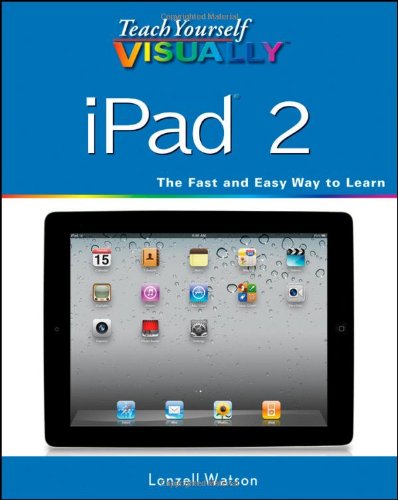
Teach Yourself VISUALLY IPad 2 1st Edition by Lonzell Watson ISBN 1118054156 9781118054154


Original price was: $50.00.$35.00Current price is: $35.00.
Teach Yourself VISUALLY IPad 2 1st Edition by Lonzell Watson – Ebook PDF Instant Download/Delivery: 1118054156, 9781118054154
Full download Teach Yourself VISUALLY IPad 2 1st Edition after payment
Product details:
ISBN 10: 1118054156
ISBN 13: 9781118054154
Author: Lonzell Watson
Teach Yourself VISUALLY iPad is a clear, concise, image-rich guide to getting the most out of your iPad, iPad mini, or iPad Pro running iOS 11. Designed to quickly get you the answers you need, it cuts to the chase by skipping the long-winded explanations and breaking each task down into bite-sized pieces. You’ll find step-by-step instruction for everything from the initial setup to working with key features, plus troubleshooting advice that can help you avoid a trip to the Apple Genius Bar. Helpful sidebars highlight tips and tricks that get things done faster, and plenty of full-color screenshots help you visualize the lesson at hand.
Exploring your iPad on your own is fun, but you’ll miss some of the lesser-known features that help make the iPad the superior device it is. This guide provides a visual tour that helps new users will learn how to take advantage of all the iPad has to offer, and experienced users will discover techniques to streamline everyday tasks.
* Customize your iPad and connect via Wi-Fi and Bluetooth
* Access music, videos, games, photos, books, and apps
* Set up your e-mail, browse the Web, and manage social media
* Troubleshoot and fix minor issues that arise
Now that you have this coveted device in your hands, you want to use every feature and maximize every capability–and Teach Yourself VISUALLY iPad helps you do just that, walking you through each step in the iPad experience.
Teach Yourself VISUALLY IPad 2 1st Table of contents:
Chapter 1: Getting Started with Your iPad
Identify and Compare the iPad Models
Meet Your iPad’s Controls
Download, Install, and Set Up iTunes
Begin Setup and Activate Your iPad
Set Up Your iPad as New Using iCloud
Set Up Your iPad from an iCloud Backup
Set Up Your iPad Using iTunes
Choose Which Items to Sync from Your Computer
Sync Your iPad with Your Computer via Wi-Fi
Explore the Interface and Launch Apps
Using Cover Sheet and Today View
Using Control Center
Using the Dock
Chapter 2: Personalizing Your iPad
Find the Settings You Need
Set Up and Configure iCloud
Choose Which Apps Can Give Notifications
Choose Sounds Settings
Configure Display, Brightness, and Night Shift
Set Home Screen and Lock Screen Wallpaper
Choose Privacy and Location Settings
Configure Search and Find What You Need
Choose Locking and Control Center Settings
Set Up and Use Do Not Disturb Mode
Secure Your iPad with Touch ID or a Passcode
Configure Restrictions and Parental Controls
Set Up Family Sharing and Add Members
Choose Date, Time, and Region Settings
Chapter 3: Working with Voice and Accessibility
Give Commands with Siri
Dictate Text Using Siri
Gather and Share Information with Siri
Configure Siri to Work Your Way
Using VoiceOver to Identify Items On-Screen
Configure Other Accessibility Features
Using a Hardware Keyboard
Using Your iPad with Your Mac
Chapter 4: Setting Up Communications
Set Up Your Mail Accounts
Set Up an Exchange Server Account
Set Your Default Account and Create Signatures
Choose How Your iPad Gets Your E-Mail
Control How Your iPad Displays Your E-Mail
Organize Your E-Mail Messages by Threads
Add People to the VIP Inbox
Choose How Your iPad Displays Your Contacts
Choose Alert Options for Calendar Events
Choose Your Default Calendar and Time Zone
Choose Settings for Notes
Chapter 5: Networking and Communicating
Using Airplane Mode
Connect Bluetooth Devices to Your iPad
Control Cellular Data and Background Refresh
Connect Your iPad to a Different Carrier
Specify Your iPad’s Cellular Access Point
Share Items via AirDrop
Share Your Cellular iPad’s Internet Access
Connect to Wi-Fi Networks and Hotspots
Connect to a Network via VPN
Send Text and Multimedia Messages
Using Emoji and Other iMessage Features
Manage Your Instant Messages
Mute a Conversation or Share Your Location
Choose Settings for Messages
Block and Unblock Senders
Chat Face-to-Face Using FaceTime
Chapter 6: Working with Apps and Files
Customize the Home Screen and the Dock
Organize Apps with Folders
Switch Quickly from One App to Another
Multitask with Split-Screen Views
Find the Apps You Need
Update and Remove Apps
Manage Automatic Downloads and Your Apple ID
Manage Files with the Files App
Enter Text Quickly in Apps
Cut, Copy, and Paste Text
Bold, Italicize, Underline, and Replace Text
Take Screenshots and Use Instant Markup
Chapter 7: Browsing the Web and Sending E-Mail
Browse the Web with Safari
Access Websites Quickly with Bookmarks
Create Bookmarks to Access Pages Quickly
Keep a Reading List of Web Pages
Fill In Forms Quickly with AutoFill
Tighten Up Safari’s Security
Read Your E-Mail Messages
Reply To or Forward an E-Mail Message
Organize Your Messages in Mailbox Folders
Write and Send E-Mail Messages
View Files Attached to Incoming Messages
Chapter 8: Keeping Your Life Organized
Browse or Search for Contacts
Create a New Contact
Share Contacts via E-Mail and Messages
Browse Existing Events in Your Calendars
Create New Events in Your Calendars
Work with Calendar Invitations
Track Your Commitments with Reminders
Take Notes
Find Your Location with the Maps App
Find Directions with the Maps App
Using the Maps App’s Favorites and Contacts
Using the Clock App
Using Apple Pay
Chapter 9: Playing Music and Videos
Navigate the Music App and Set Preferences
Play Music Using the Music App
Play Videos Using the TV App
Play Music and Videos Using AirPlay
Create a Music Playlist
Configure iPad Audio Settings
Listen to Apple Music Radio
Chapter 10: Working with Photos and Books
Browse Photos Using Years, Collections, and Moments
Browse Shared Photos
Browse Photos Using Albums
Create Albums
Share Photos Across Your Devices and Computers
Share Photo Albums with Other People via iCloud
Share and Use Your Photos
Play Slide Shows of Photos
Read Digital Books with iBooks
Chapter 11: Taking Photos and Videos
Take Photos with the Camera App
Take HDR Photos and Square Photos
Using the Self-Timer and the Grid
Take Time-Lapse Movies
Take Fun Photos with Photo Booth
Crop, Rotate, and Straighten Photos
Enhance Photos
Reduce Red-Eye in Photos
Adjust the Colors in Photos
Apply Filters to Photos
Capture Video
Chapter 12: Troubleshooting Your iPad
Close an App That Has Stopped Responding
Update the Software on Your iPad
Extend Your iPad’s Runtime on the Battery
Back Up and Restore Your iPad Using iTunes
Back Up and Restore Your iPad Using iCloud
Restore the Operating System Using iTunes
Restore Your iPad to Factory Settings
Troubleshoot Wi-Fi Connections
Locate Your iPad with Find My iPad
People also search for Teach Yourself VISUALLY IPad 2 1st:
teach yourself visually ipad
teach yourself visually iphone 12
teach yourself visually iphone 14
teach yourself visually iphone 13
teach yourself visually
Tags: Lonzell Watson, VISUALLY IPad