

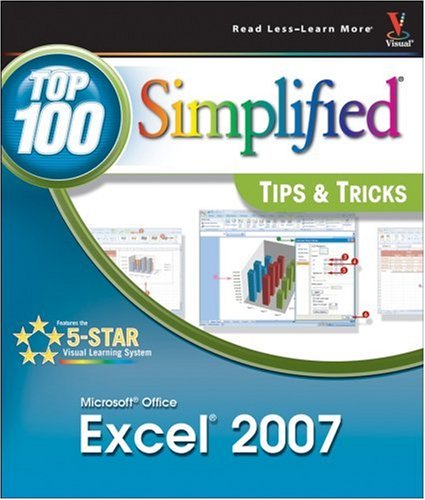
Microsoft Office Excel 2007 Top 100 Simplified Tips Tricks Top 100 Simplified Tips Tricks 1st Edition by Denise Etheridge ISBN 0470126744 978-0470126745
Original price was: $50.00.$35.00Current price is: $35.00.
Microsoft Office Excel 2007 Top 100 Simplified Tips Tricks Top 100 Simplified Tips Tricks 1st Edition by Denise Etheridge – Ebook PDF Instant Download/Delivery:0470126744 ,978-0470126745
Full download Microsoft Office Excel 2007 Top 100 Simplified Tips Tricks Top 100 Simplified Tips Tricks 1st Edition after payment
Product details:
ISBN 10:0470126744
ISBN 13:978-0470126745
Author:Denise Etheridge
ou already know Excel 2007. Now you’d like to go beyond with shortcuts, tricks, and tips that let you work smarter and faster. And because you learn more easily when someone shows you how, this is the book for you. Inside, you’ll find clear, illustrated instructions for 100 tasks that reveal cool secrets, teach timesaving tricks, and explain great tips guaranteedto make you more productive with Excel 2007.
Minimal text and maximum illustrations
Task-oriented, step-by-step approach
Navigational aids connect instructions to illustrations
Self-contained, two-page lessons
Uniform layout makes it easy to read less, learn more
How easy is it?
Look for these symbols marking the difficulty of each task.
Demonstrates a new spin on a common task
Introduces a new skill or a new task
Combines multiple skills requiring in-depth knowledge
Requires extensive skill and may involve other technologies
Table of contents:
1. Boost Your Efficiency
Validate with a Validation List
Paste Your Validation List
Validate with Data Entry Rules
Extend a Series with AutoFill
Insert Symbols or Special Characters
Add a Symbol
Add a Special Character
Hide Rows by Grouping and Outlining
Add a Group
Remove a Group
Find and Replace Formats
Add Comments to Your Worksheet
Add a Comment
Display All Comments
Let Excel Read Back Your Data
Read Cells
Speak Cells on Enter
Create Your Own Sort or AutoFill
2. Work with Formulas and Functions
Enter Formulas Using a Variety of Methods
Calculate with an Operator
Calculate by Using a Function and Cell Addresses
Calculate by Using Autosum
Name Cells and Ranges
Name a Range of Cells
Create Named Ranges from a Selection
Define a Constant
Define a Constant
Display a Constant
Create Formulas That Include Names
Use a Constant or Range Name in a Formula
Use a Constant or Range Name in a Formula
Calculate with the Function Wizard
Figure Out Loan Terms
Determine the Internal Rate of Return
Determine the Nth Largest Value
Create a Conditional Formula
Calculate a Conditional Sum
Add a Calculator
Add the Calculator
Use the Scientific Mode
Find Products and Square Roots
Calculate a Product
Calculate a Square Root
Perform Time Calculations
Find the Difference Between Two Times
Convert a Serial Value to a Time
Perform Date Calculations
Find Number of Days Between Two Dates
3. Copy, Format, and More
Check Your Formulas for Errors
Trace Precedents and Dependents
Trace Precedents
Trace Dependents
Change Text to Numbers
Convert a Row to a Column
Copy with the Office Clipboard
Adjust Column Widths with Paste Special
Specify How to Paste with Paste Special
Create Your Own Style
Group Formats as a Style
Apply a Format Style
Copy Styles to Another Workbook
Conditionally Format Your Worksheet
Conditional Format
Data Bars
Modify Rules
Track Changes While Editing
Consolidate Worksheets
4. Manipulate Records
Enter Data with a Form
Filter Duplicate Records
Perform Simple Sorts and Filters
Sort a List
Filter a List
Perform Complex Sorts
Sort by Cell Color, Font Color, or Icon
Perform Complex Filters
Filter by Multiple Criteria
Subtotal Sorted Data
Chart Filtered Data Easily
Count Filtered Records
Look Up Information in Your Worksheet
Define Data as a Table
Modify a Table Style
5. Explore the Patterns in Your Data
Create a PivotTable
Modify PivotTable Data and Layout
Refresh Data
Change Layout
Compute PivotTable Sub and Grand Totals
Create a PivotTable Calculated Field
Hide Rows or Columns in a PivotTable
Sort a PivotTable
Sort Field Labels
Sort Data Fields
Create a PivotChart
Describe Data with Statistics
Find the Correlation between Variables
Explore Outcomes with What-If Analysis
Optimize a Result with Goal Seek
6. Create Charts
Create a Chart That Has Visual Appeal
Add Chart Details
Change Chart Location
Change Rotation and Perspective
Change the Wall and Floor
Adjust the Axis
Change the Gridlines
Change the Chart Type
Add a Trendline
Add and Remove Chart Data
Change the Data Area
Add a Legend Item
Add Error Bars
Create a Histogram
Create a Combination Chart
Create a Secondary Axis
Change Chart Type
7. Present Worksheets
Format Numbers, Dates, and Times
Comma Style Format
Accounting Number Format
Currency Format
Percents
Dates
Times
Fractions
Apply Formats to Cells
Create a Fill
Change the Text Color
Add a Border
Merge and Center
Wrap Text
Orientation
Fill with a Gradient
Format Quickly with Format Painter
Insert Shapes into Your Worksheet
Insert Text Boxes into Your Worksheet
Insert Photographs into Your Worksheet
Arrange the Graphics in Your Worksheet
Rotate and Align Graphics
Insert a Background Image
Take a Picture of Your Worksheet
8. Protect, Save, and Print
Protect Your Worksheet
Save a Workbook as a Template
Choose a Format When Saving a Workbook
Print Multiple Areas of a Workbook
Print Multiple Worksheets from a Workbook
9. Extend Excel
Paste Link into Word or PowerPoint
Embed a Worksheet
Create a Link from an Excel Workbook
Query a Web Site
Copy a Word Table into Excel
Import a Text File into Excel
Import an Access Database into Excel
Query an Access Database
Reuse a Saved Query
Import an Excel Worksheet into Access
Using Excel with Mail Merge
10. Customize Excel
Add Features by Installing Add-Ins
Customize the Quick Access Toolbar
Add a Feature to the Quick Access Toolbar
Move the Quick Access Toolbar Below the Ribbon
Work with Multiple Windows
Save Time by Creating a Custom View
Create a Custom Number Format
Automate Your Worksheet with Macros
Add a Button to Run a Macro
People also search for:
how to download microsoft office excel 2007 for free
microsoft office compatibility pack for word excel and powerpoint 2007
microsoft office excel 2007 step by step curtis frye
microsoft office excel 97 2007 binary file format specification
in ms excel 2007 cell referencing is of
Tags: Denise Etheridge, Microsoft, Office, Excel