

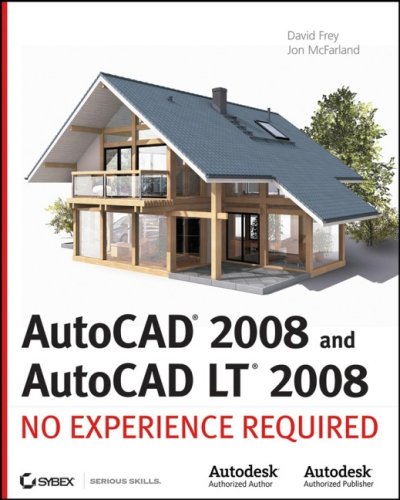
AutoCAD 2008 and AutoCAD LT 2008 No Experience Required 1st Edition by David Frey, Jon McFarland ISBN 0470175036 9780470175033

Original price was: $50.00.$35.00Current price is: $35.00.
AutoCAD 2008 and AutoCAD LT 2008 No Experience Required 1st Edition by David Frey, Jon McFarland – Ebook PDF Instant Download/Delivery: 0470175036, 9780470175033
Full download AutoCAD 2008 and AutoCAD LT 2008 No Experience Required 1st Edition after payment
Product details:
ISBN 10: 0470175036
ISBN 13: 9780470175033
Author: David Frey, Jon McFarland
AutoCAD 2008 and AutoCAD LT 2008 No Experience Required 1st Table of contents:
Chapter 1: Getting to Know AutoCAD for Windows
Starting AutoCAD for Windows
Exploring the User Interface
Using the Start Tab
Introducing Workspaces
Exploring the Drafting & Annotation Workspace
Putting the User Interface to Work
Using the Ribbon
Using File Tabs to Manage Drawings
Working in the Command-Line Interface
Understanding the Status Bar
Using the Application Menu
Using the Keyboard
Using the Mouse
If You Would Like More Practice…
Finding Tools in the User Interface
Are You Experienced?
Chapter 2: Learning Basic Commands to Get Started
Using the Line Tool
Using Coordinates
Using Relative Coordinates
Using the Direct Distance Method
Drawing the Shape
Using Relative Cartesian Coordinates
Erasing Lines
Using Relative Polar Coordinates
Using Direct Input
Using the OFFSET Command
Using the FILLET Command
Completing the Shape
Offsetting Lines to Mark an Opening
Extending Lines
Trimming Lines
If You Would Like More Practice…
Are You Experienced?
Chapter 3: Setting Up a Drawing
Setting Up the Drawing Units
Setting Up the Drawing Size
Using the Grid
Setting Up Drawing Limits
Drawing with Grid and Snap
Taking a Closer Look at Dynamic Input
Saving Your Work
Saving Drawings to Your Hard Drive or Network Drive
Saving Drawings to A360 Drive
Understanding AutoCAD Units
Exploring Options for Linear Units
Exploring Options for Angular Units
Are You Experienced?
Chapter 4: Developing Drawing Strategies: Part 1
Laying Out the Walls
Creating Polylines from Existing Objects
Creating the Exterior Wall Lines
Creating the Interior Walls
Cutting Openings in the Walls
Creating Doors
Drawing Swinging Doors
Copying Objects
Mirroring Objects
Scaling the Bathroom Door
Drawing a Sliding-Glass Door
Drawing the Bifold Doors
Reviewing Drawing Strategies Used in This Chapter
If You Would Like More Practice…
An Alternative Sliding-Glass Door
An Addition to the Cabin
Three Views of a Block
Are You Experienced?
Chapter 5: Developing Drawing Strategies: Part 2
Starting and Running Commands
Drawing the Thresholds
Drawing the Front Threshold
Drawing the Back Threshold
Drawing the Decks and Stairs
Drawing the Front Deck
Drawing the Deck Posts
Drawing the Stairs
Mirroring the Post and Railing
Drawing the Back Deck and Stairs
Using Point Filters to Finish the Deck
Laying Out the Kitchen
Drawing the Counter
Drawing the Stove and Refrigerator
Completing the Stove with Parametrics
Drawing the Kitchen Sink
Constructing the Bathroom
Setting Running Object Snaps
Drawing a Shower Unit
Drawing the Bathroom Sink and Mirror
Positioning the Toilet and Shelves
Drawing the Hot Tub
If You Would Like More Practice…
Drawing the Cabin Again
Drawing Something Else
Drawing Furniture for the Cabin
Drawing a Gasket
Drawing a Parking Lot
Are You Experienced?
Chapter 6: Using Layers to Organize Your Drawing
Using Layers as an Organizing Tool
Setting Up Layers
Assigning Linetypes to Layers
Assigning Objects to Layers
Turning Off and Freezing Layers
Drawing the Headers
Drawing the Roof
Setting a Linetype Scale Factor
Drawing the Ridgeline
Using the Layer Walk Tool
Setting Properties of Layers and Objects
Assigning a Color or a Linetype to an Object Instead of a Layer
Making a Color or a Linetype Current
Using the Action Recorder
If You Would Like More Practice…
Creating a Layer State
Setting Up Layers for Your Trade or Profession
Are You Experienced?
Chapter 7: Combining Objects into Blocks
Making a Block for a Door
Inserting the Door Block
Understanding and Using Groups
Finding Blocks in a Drawing
Using Grips to Detect a Block
Using the LIST Command to Detect a Block
Using the Properties Palette to Examine a Block
Creating a Window Block
Inserting the Window Block
Rotating a Block During Insertion
Using Snap Tracking to Set the Insertion Point
Changing a Block’s Scale Factor by Using Object Properties
Finishing the Windows
Revising a Block
Sharing Information Between Drawings
Copying Objects Between Drawings
Using the AutoCAD DesignCenter
Other Ways to Share Information Between Drawings
If You Would Like More Practice…
Are You Experienced?
Chapter 8: Controlling Text
Setting Up Text Styles
Determining the Text and Drawing Scales
Defining a Text Style for View Titles
Placing Titles of Views in the Drawing
Using Annotative Text
Defining an Annotative Text Style
Placing Room Labels in the Floor Plan
Using Text in a Grid
Creating a Border and Title Block
Using Multiline Text
Finishing the Title Block
Using Mtext for General Notes
Using the Spell Check Feature
Exploring Other Aspects of Multiline Text
If You Would Like More Practice…
Are You Experienced?
Chapter 9: Using Dynamic Blocks and Tables
Using Attributes for a Grid
Defining Blocks with Attributes
Inserting Blocks with Attributes
Editing Attribute Text
Setting Up Multiple Attributes in a Block
Defining a Block with Multiple Attributes
Calculating Areas
Inserting the Room Information Block
Editing Attributes
Controlling the Visibility of Attributes
Exploring Other Uses for Attributes
Creating a Dynamic Block
Setting Up Parameters and Actions
Fine-Tuning the Dynamic Block with the Properties Palette
Inserting a Dynamic Block
Creating a Table
Defining a Table Style
Designing a Table
Adding Formulas to a Table
Creating Tables from Attributes
Modifying the Table Display
If You Would Like More Practice…
Are You Experienced?
Chapter 10: Generating Elevations
Drawing the South Elevation
Creating the South Elevation
Setting Up Lines for the Heights
Using Construction Lines to Project Elevation Points
Copying Objects by Using Grips
Trimming Lines in the Elevation
Assigning Elevation Layers
Drawing the Decks in Elevation
Generating the Other Elevations
Making the Opposite Elevation
Revising the New South Elevation
Making the Front and Back Elevations
Considering Drawing Scale Issues
Drawing Interior Elevations
If You Would Like More Practice…
Are You Experienced?
Chapter 11: Working with Hatches, Gradients, and Tool Palettes
Hatching the South Elevation
Looking at Hatch Patterns
Hatching the Rest of the South Elevation
Using Hatches in the Floor Plan
Creating the User-Defined Hatch Pattern
Controlling the Origin of the Hatch Pattern
Finishing the Hatches for the Floors
Modifying the Shape of Hatch Patterns
Creating and Managing Tool Palettes
Creating a New Tool Palette
Setting Up a Palette for Hatches
Creating a Palette for Commands
If You Would Like More Practice…
Creating the Hatch Patterns for the Other Elevations
Are You Experienced?
Chapter 12: Dimensioning a Drawing
Introducing Dimension Styles
Preparing for Dimensioning
Creating a Text Style for Dimensions
Making a New Dimension Style
Setting Up the Primary Units Tab (Architectural)
Setting Up the Primary Units Tab (Metric)
Completing the Dimension Style Setup
Exploring the Alternate Units and Tolerances Tabs
Placing Dimensions on the Drawing
Placing Dimensions
Using the Dimension Continue Command
Using the Dimension Baseline Command
Setting Up Vertical Dimensions
Finishing the Dimensions
Placing Other Types of Dimensions
Placing Radial Dimensions
Placing a Diameter Dimension
Placing an Arc Length
Setting Up Parent and Child Dimensioning Styles
Using Aligned and Angular Dimensions
Using Leader Lines
Modifying Dimensions
Editing Dimension Text Content
Moving Dimensions
Adjusting Space Between Stacked Dimensions
Using Dimension Overrides
Dimensioning Short Distances
If You Would Like More Practice…
Dimensioning the Garage Addition
Dimensioning to a Centerline
Practicing on Your Own
Are You Experienced?
Chapter 13: Managing External References
Drawing a Site Plan
Using Surveyor’s Units
Drawing the Driveway
Setting Up an External Reference
Using the External References Palette
Organizing the Drawing Objects
Moving and Rotating an Xref
Modifying an Xref Drawing
Modifying an Xref by Making It the Current Drawing
Modifying an Xref from Within the Host Drawing
Adding an Image to a Drawing
Putting Xrefs to Use
Exploring Additional Xref Features
Setting the Xref Path
Changing Path Types
Binding Xrefs
Exploring on Your Own
If You Would Like More Practice…
Building Architectural References
Comparing Reference Types
Are You Experienced?
Chapter 14: Using Layouts to Set Up a Print
Preparing the Title Block
Creating the Title Block Drawing
Sizing and Cleaning Up the Title Block
Defining the Title Block Attributes
Setting Up a Sheet Template
Finishing the Sheet Template
Creating Plan Sheets
Creating the Cover Sheet
Generating Floor Plan Sheets
Composing the Floor Plan Sheets
Creating Elevation Sheets
Composing the South Elevation
Composing the Other Elevations
Using Sheet Set Manager
Creating a New Sheet Set
Adding Drawings to a Sheet Set
Defining Sheet Properties
If You Would Like More Practice…
Are You Experienced?
Chapter 15: Printing a Drawing
Using the Plot Dialog Box
Assigning Lineweights to a Drawing
Assigning Lineweights to Layers
Updating Xref Layer Definitions
Plotting from Model Space
Configuring the Plot
Previewing a Print
Plotting a Drawing Using Layouts
Publishing a Single Layout
Publishing Multiple Layouts
Publishing with Sheet Set Manager
A Few Words About Plot Styles
Introducing Plot Style Table Files
Understanding How Plot Style Table Files Are Organized
Going Forward
If You Would Like More Practice…
Are You Experienced?
Chapter 16: Creating 3D Geometry
Modeling in 3D
Setting Up the 3D Workspace and Environment
Making the Walls
Creating the Door and Window Block-Outs
Moving and Rotating in 3D
Using the First Right-Hand Rule
Cutting the Openings
Creating the Floor, Foundation, and Thresholds
Creating the Foundation and Supports
Building the Windows
Navigating with the ViewCube
Adding the Sliding Door
Building the Decks
Putting a Roof on the Cabin
Getting Further Directions in 3D
Using Other Solid Modeling Tools
Using Mesh Modeling Tools
Using Surface Modeling Tools
If You Would Like More Practice…
Are You Experienced?
Chapter 17: Rendering and Materials
Creating Cameras to Reproduce Views
Using the Loft Tool
Creating the Cameras
Creating a Lighting Scheme
Creating a Light Source
Enabling Shadows
Creating the First Render
Controlling the Background of the Rendering
Adding Materials
Adjusting the Material Mapping
Rendering to a File
If You Would Like More Practice…
Are You Experienced?
People also search for AutoCAD 2008 and AutoCAD LT 2008 No Experience Required 1st:
Tags: David Frey, Jon McFarland, AutoCAD